Account Management
AiShort works without an account — but logging in lets you collect your favorite prompts, create your own, share them to the community, and sync across devices. This page covers login, registration, passwords, and data.
Login Methods
The login dialog offers "Password sign-in" and "Passwordless sign-in" tabs, plus one-click Google sign-in.
Password Login
Log in with your username or registered email plus your password.
Passwordless Login
- Switch to "Passwordless sign-in" and enter your registered email
- Click "Get sign-in link" — a sign-in link is sent to your inbox
- Open the link to log in
Nothing to remember — handy if you only sign in now and then.
Google Login
Click the Google button in the login dialog for one-click sign-in. The first time you do this, we create an account for you automatically — no separate registration step.

Register Account
- In the login dialog, click "Create account" to switch to register
- Fill in email, username, and password, and agree to the Privacy Policy and Terms of Service
- You'll be logged in automatically after submitting

My Account
After logging in, open the "My account" page to manage your profile, password, level, and data.
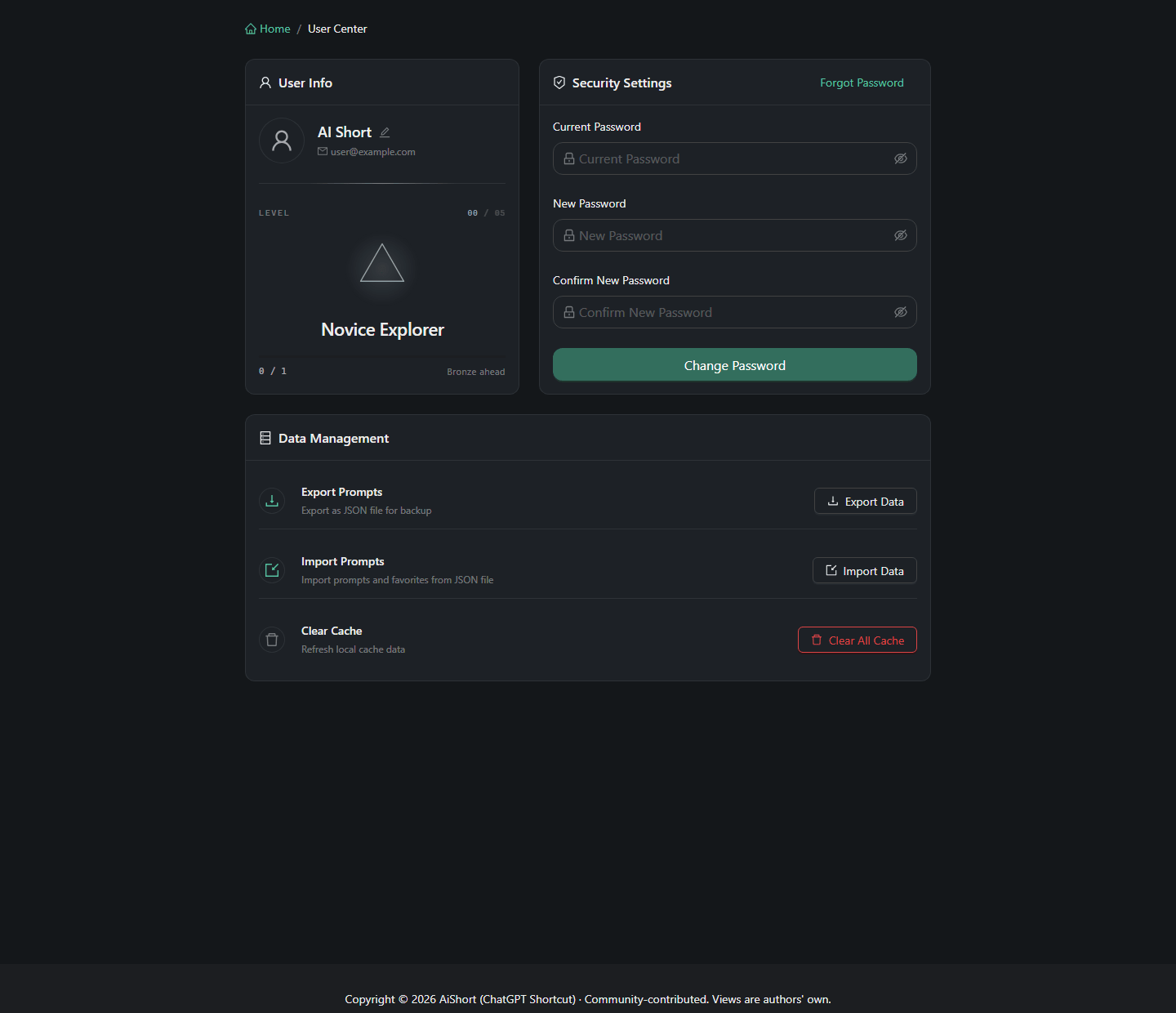
Change Username
Click the edit icon next to your username, then save.
Change Password
- Enter your current password
- Enter your new password and confirm
- Click "Change password" to submit
Forgot your password? In the login dialog, click "Forgot Password", enter your registered email, click "Send Reset Email", and follow the link.
My Level
The account page shows your level (L0–L9) and progress to the next tier — your level is determined by how many prompts you've shared to the community.
Data Management
The "My account → Data management" section offers three actions:
- Clear cache — refreshes locally cached data; use it when data isn't syncing or the display looks off. Your collections and custom prompts aren't lost, this just forces a re-sync
- Export prompts — exports a JSON file for backup (see Custom Prompts)
- Import prompts — imports prompts and collections from a JSON file
Related Documentation
- Getting Started - Basic usage
- My Collection - Collection management
- Custom Prompts - Create and manage