My Collection
Once you're logged in, My collection gives you a bookmarks-style space for your favorite prompts — drag to reorder, tag for context, and filter by tag when you need something fast. Prompts you create show up here too.
In the online edition, collection data is stored on the server (login required). In the offline edition, collection data is stored locally in the browser (localStorage, no login required). The functionality is the same.
View Switching
The view switcher at the top of the homepage offers two modes:
- My collection: Shows your collected and custom prompts
- Explore: Browses the public curated library
Your browser remembers the last view you used, so you pick up right where you left off.

Collection Overview
A summary card at the top of the My Collection view gives you the highlights at a glance:
- Four stats — Total / My Prompts / Favorites / Custom Tags
- A level badge (L0–L9) that climbs as you share more prompts to the community
Add to Collection
Click the heart "Collect" button on a card to add it to My Collection.
Collecting a community prompt automatically casts an upvote, helping quality content gain more visibility.
Remove from Collection
In the My Collection view, click the heart icon on a card to remove it.
Filter and Search
The toolbar at the top of the collection view helps you find things fast:
- A segmented All / Prompts / Favorites switch to filter by type
- Custom tag chips — click to filter by tag
- A search box (
Ctrl + Kto focus) for keyword lookup
Custom Tags
Add tags to your collected prompts for easier classification:
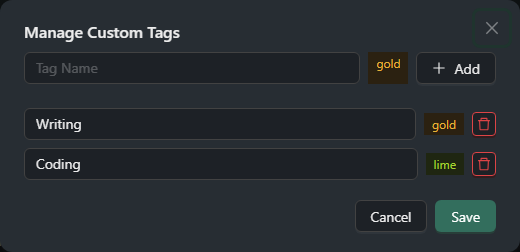
Add Tag
- Click "Manage Tags" on the toolbar
- Enter a tag name and pick one of 11 preset colors
- Save — the tag is now available in the filter bar
Manage Tags
In the "Manage Tags" dialog you can:
- Rename tags
- Change tag color (11 preset colors)
- Delete tags

Drag and Drop Sorting
Drag-and-drop reordering is supported in the My Collection view:
- Grab the drag handle on the left edge of the card
- Drop it at the target position
- The new order saves automatically (to the server in the online edition, to your browser in the offline edition)
Related Documentation
- Custom Prompts - Create and manage prompts
- Interface Guide - Search and filter
- Account Management - Login and settings